Documentation

Qt-UI StyleKit Docs

A reusable QSS and icon style package for building consistent, modern, maintainable Qt Widget interfaces.

Overview

Qt-UI StyleKit Overview

StyleKit is a QSS and icon style package for Qt Widgets projects. It helps teams standardize common controls such as buttons, inputs, tables, menus, dialogs, scroll bars, and toolbars.

Use Cases

  • Unify the visual style of existing Qt applications.
  • Establish a reusable UI baseline for new products.
  • Provide consistent styling for industrial software, business systems, and data dashboards.

What It Includes

  • Multiple QSS theme directions.
  • Common widget state coverage.
  • Icon assets aligned with control sizing.
  • Theme variables and color usage guidance.

Integration

Most projects only need to load the required QSS file and follow the documented object names, dynamic properties, or state conventions.

Quick Start

Quick Start

  1. Copy the selected StyleKit theme files into your Qt project resources or deployment directory.
  2. Load the QSS file when the application starts.
  3. Apply the documented object names or dynamic properties to controls that need variants.
  4. Keep business UI code focused on layout and behavior; avoid hard-coded colors in pages.
QFile file(":/themes/stylekit/light.qss");
if (file.open(QIODevice::ReadOnly)) {
    qApp->setStyleSheet(QString::fromUtf8(file.readAll()));
}

Common Calls

Method Description Parameters Return
QFile file(path) Creates a file object for the QSS file. path: QSS resource path or local file path. QFile object
file.open(QIODevice::ReadOnly) Opens the QSS file for reading. Open mode flags. bool
file.readAll() Reads the full QSS content. None. QByteArray
QString::fromUtf8(data) Converts UTF-8 QSS bytes into a QString. data: QSS byte content. QString
qApp->setStyleSheet(qss) Applies the stylesheet to the whole Qt application. qss: stylesheet text. void

Use one theme as the baseline first, then add project-specific overrides in a small separate QSS file.

Usage Guide

Usage Guide

StyleKit is organized around standard Qt selector usage, object names, and dynamic properties.

Recommended Workflow

  • Load the base QSS once during application startup.
  • Use object names for stable semantic roles such as primaryButton or sidePanel.
  • Use dynamic properties for variants such as type=primary, danger=true, or compact=true.
  • Refresh the style after changing dynamic properties at runtime.
button->setProperty("type", "primary");
button->style()->unpolish(button);
button->style()->polish(button);
button->update();

Common Calls

Method Description Parameters Return
qApp->setStyleSheet(qss) Applies or replaces the global application stylesheet. qss: stylesheet text. void
setProperty(name, value) Sets a dynamic property used by QSS selectors. name: property name; value: property value. bool
style()->unpolish(widget) Clears the current style cache for a widget. widget: target widget. void
style()->polish(widget) Recalculates the widget style. widget: target widget. void
update() Requests repaint after a runtime style change. None. void

Maintenance Notes

Keep product-specific overrides small. If a color or spacing rule is reused by multiple pages, promote it into the theme layer instead of copying it into page code.

Style Preview

Style Preview

StyleKit previews show the visual baseline of each QSS theme. Use these screenshots to compare control density, color direction, border hierarchy, and state readability before choosing a project theme.

Absent Light
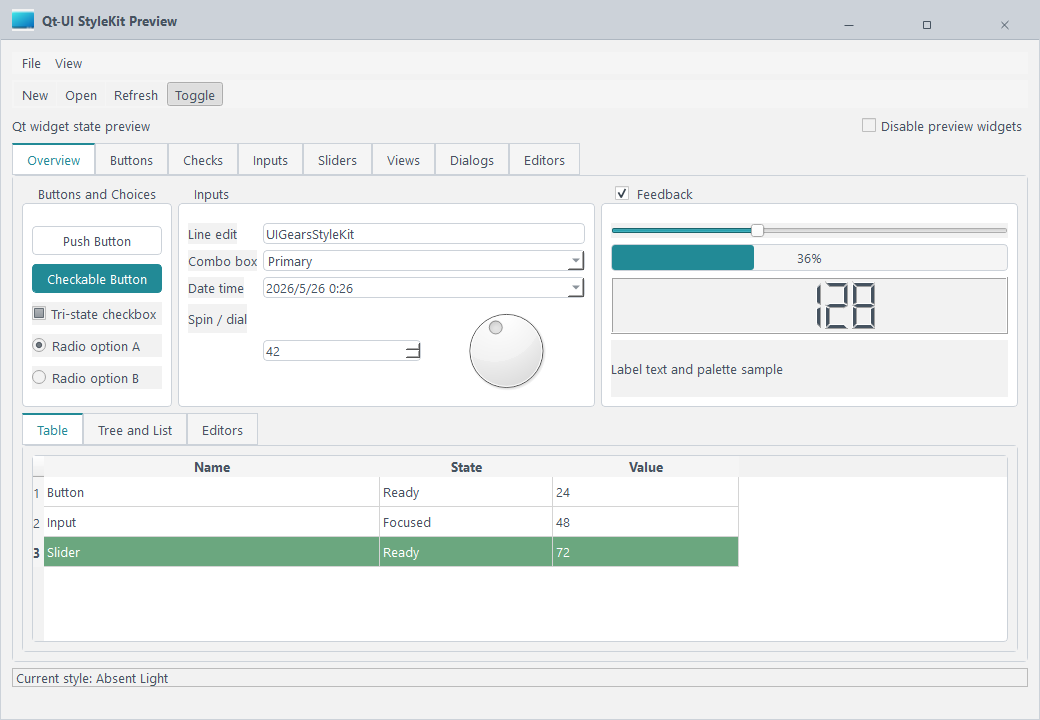
Absent Light

A clean and lightweight theme for business backends, forms, and compact information screens.

Tags: Light, Clean

Arduino
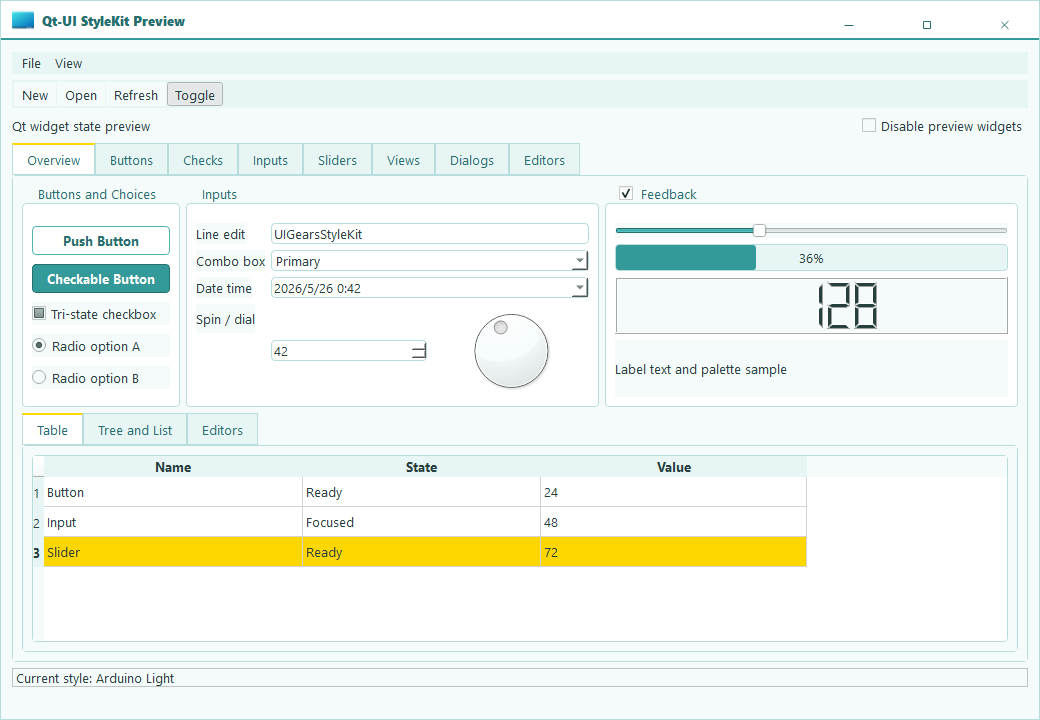
Arduino

A bright hardware-tool inspired theme for device panels, control pages, and technical tools.

Tags: Light, Tooling

Ayu Bordered
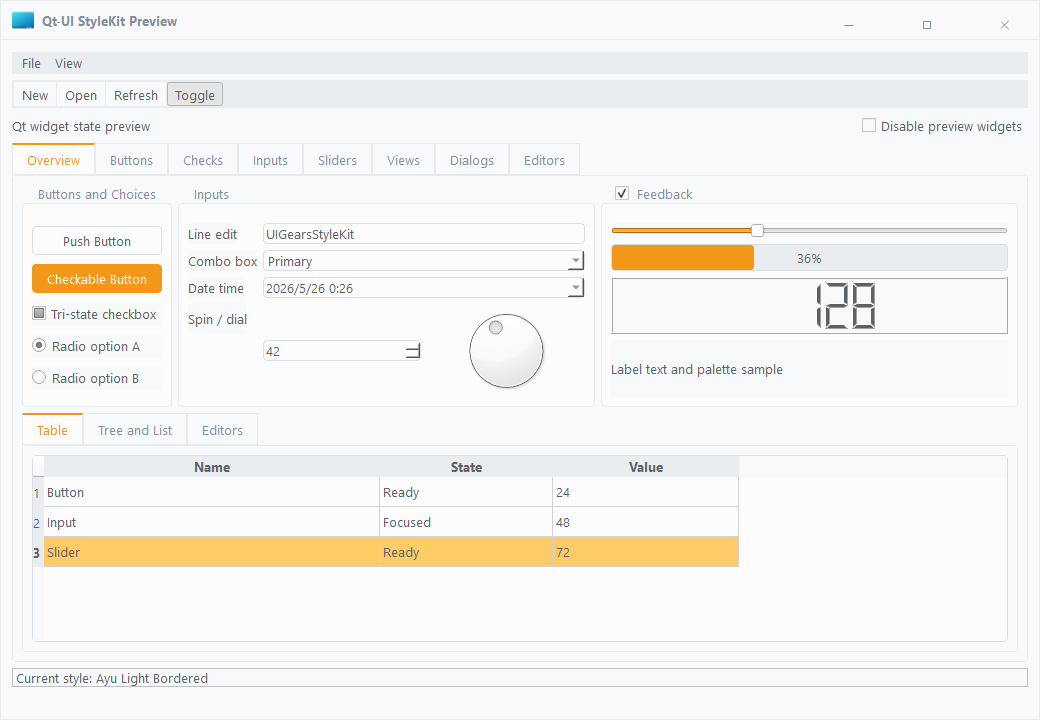
Ayu Bordered

A light theme with clearer borders and stronger hierarchy for dense data pages and configuration panels.

Tags: Light, Bordered

Blue Light
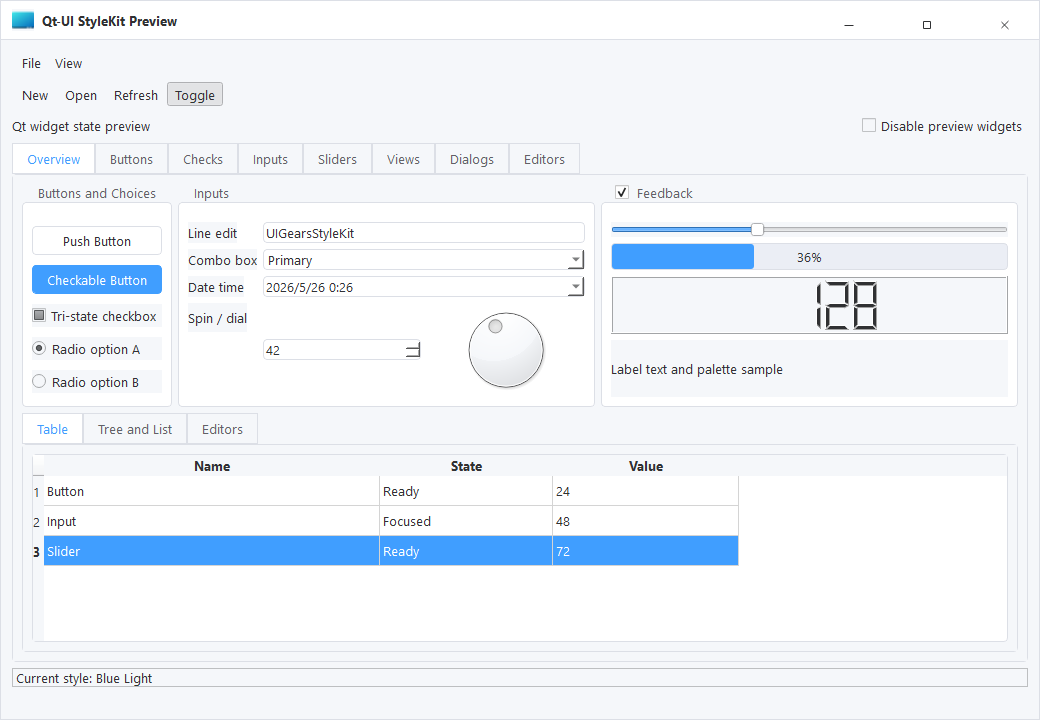
Blue Light

A business-blue light theme for enterprise management systems, workspaces, and workflow pages.

Tags: Light, Business

Common Light
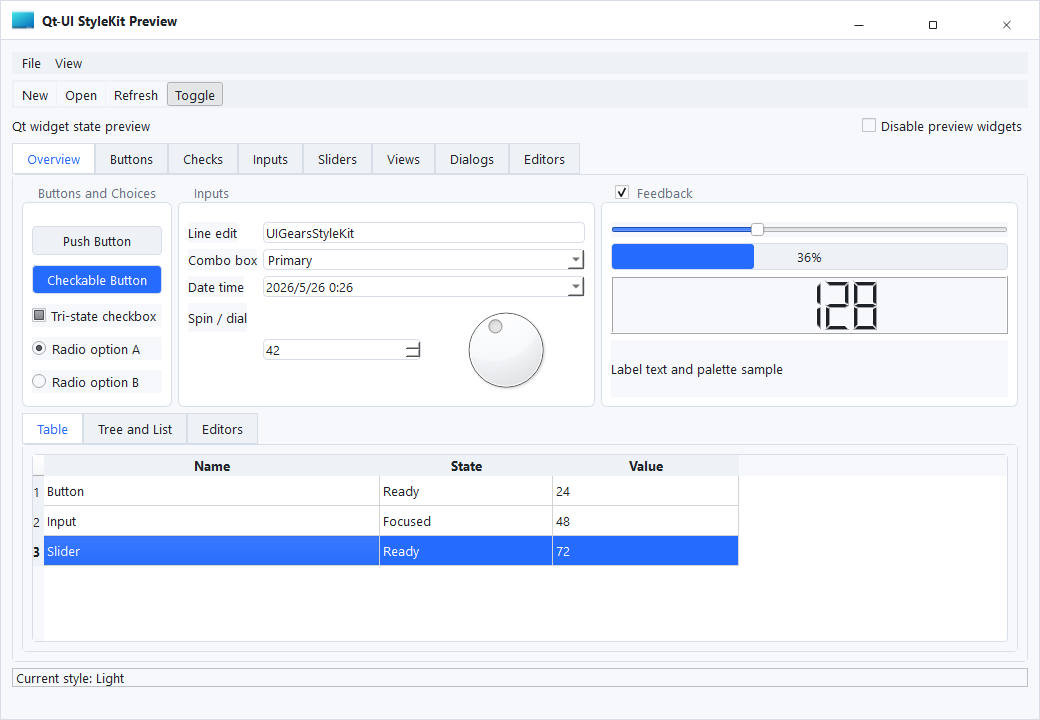
Common Light

A general light baseline for standard tools, admin pages, and quick project integration.

Tags: Light, General

Horizon
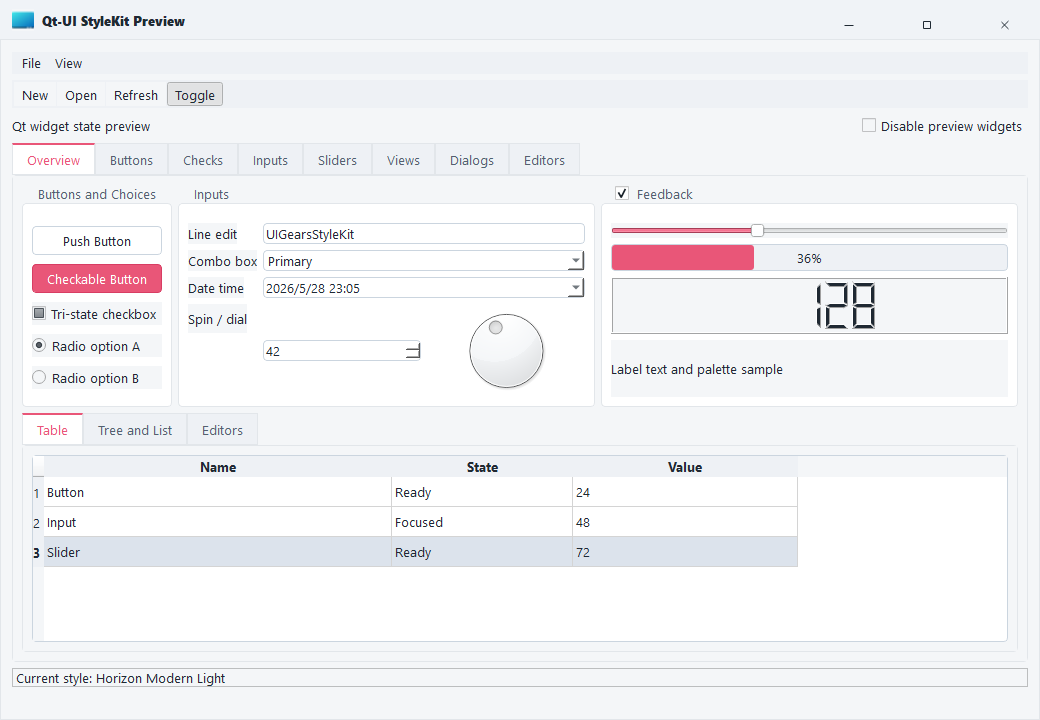
Horizon

A softer visual direction with gentle color transitions for content-heavy desktop software.

Tags: Light, Soft

Monochromator
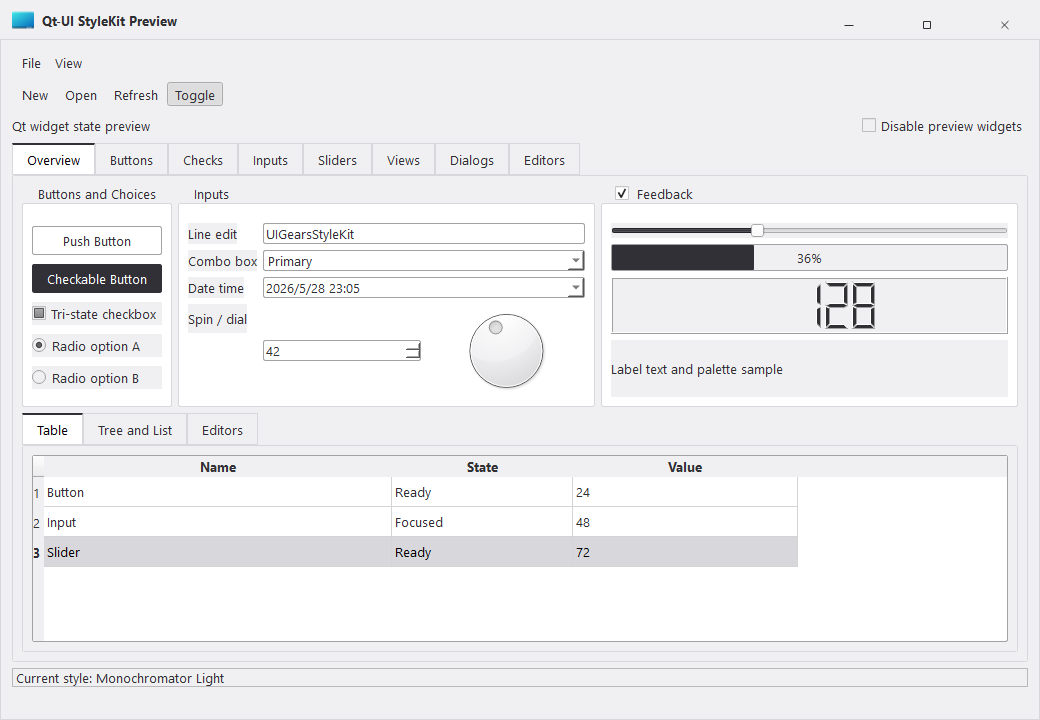
Monochromator

A structured monochrome style for professional tools, parameter pages, and hierarchy-focused interfaces.

Tags: Light, Monochrome

Neon Green
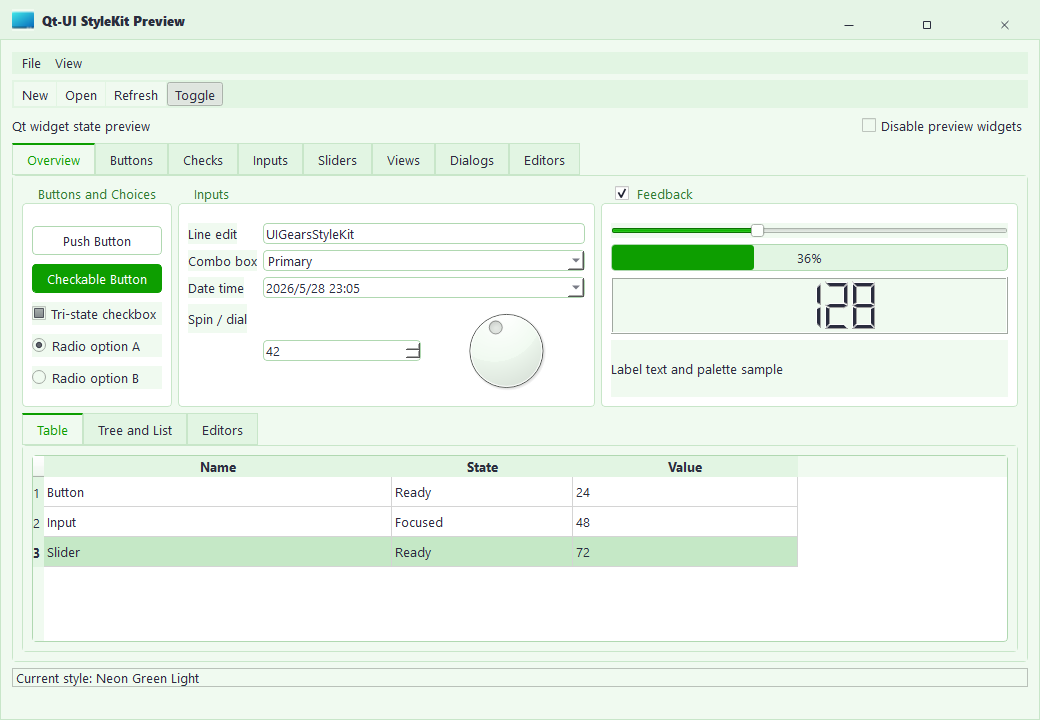
Neon Green

A high-recognition light theme for status monitoring, lab tools, and feedback-heavy interfaces.

Tags: Light, Accent

Purple Blue
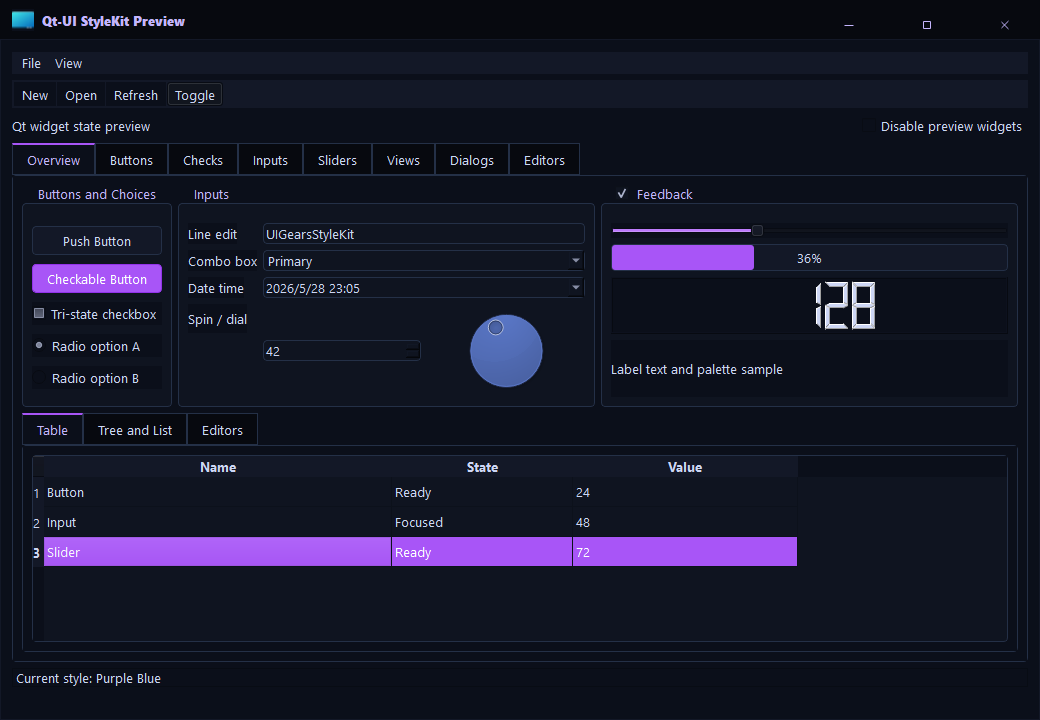
Purple Blue

A modern blue-purple visual direction for branded desktop products and product backends.

Tags: Light, Brand

Tokoy Light
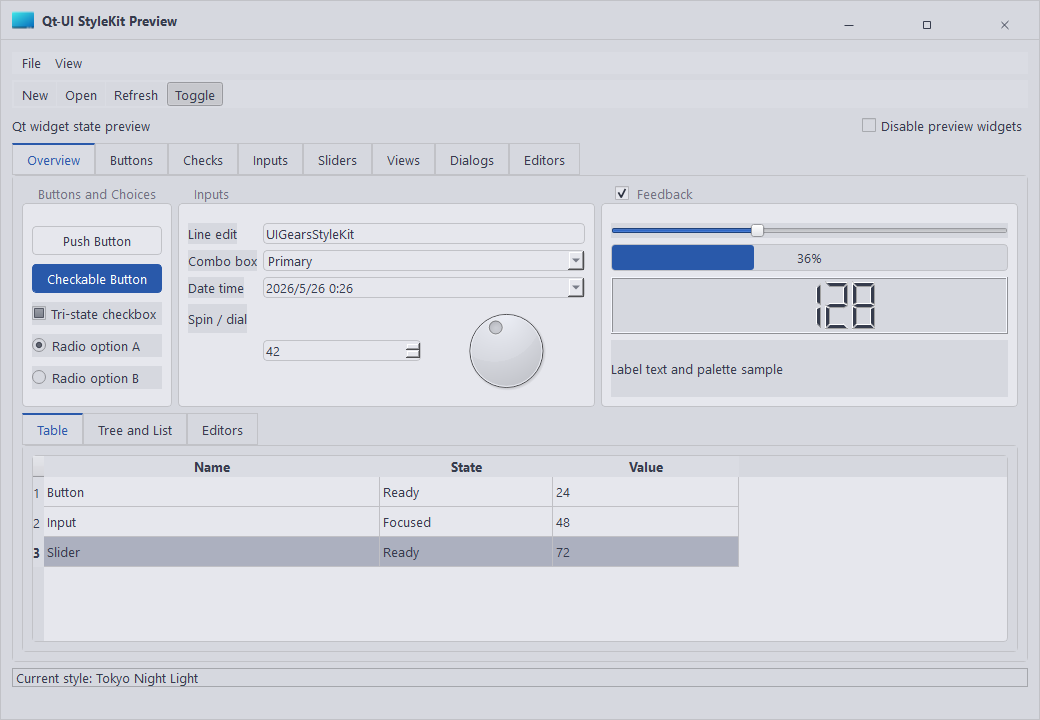
Tokoy Light

An expressive light theme for product dashboards and creative tool pages.

Tags: Light, Expressive

VS17 Dark
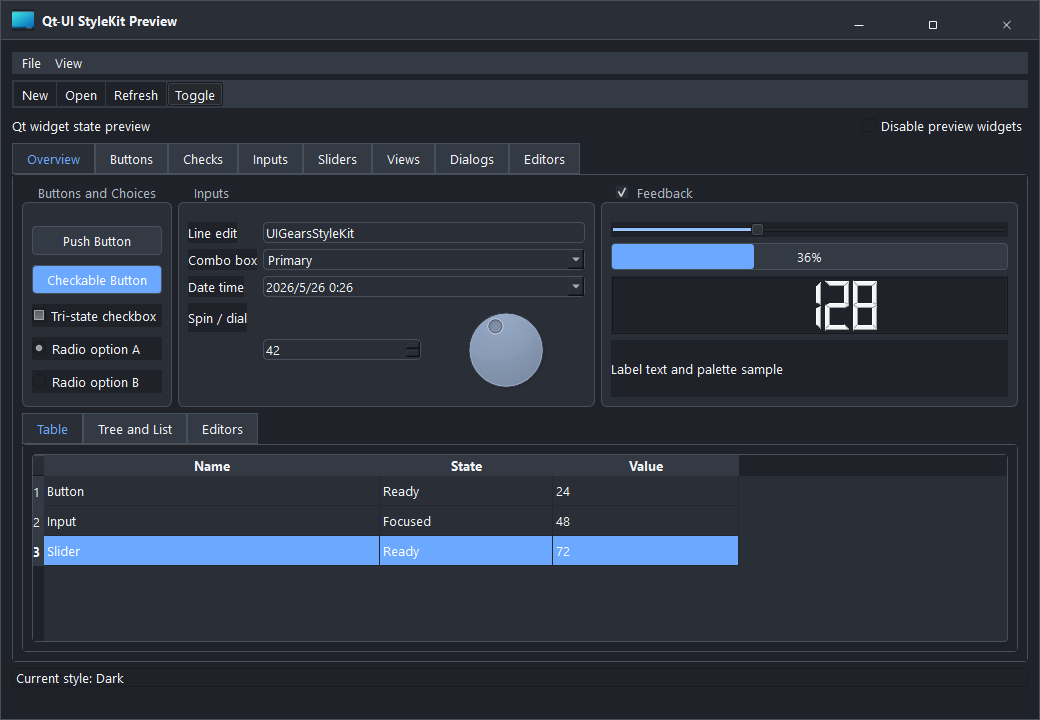
VS17 Dark

A dark developer-tool style for industrial software, monitoring pages, and focused workspaces.

Tags: Dark, Studio

VS17 Light
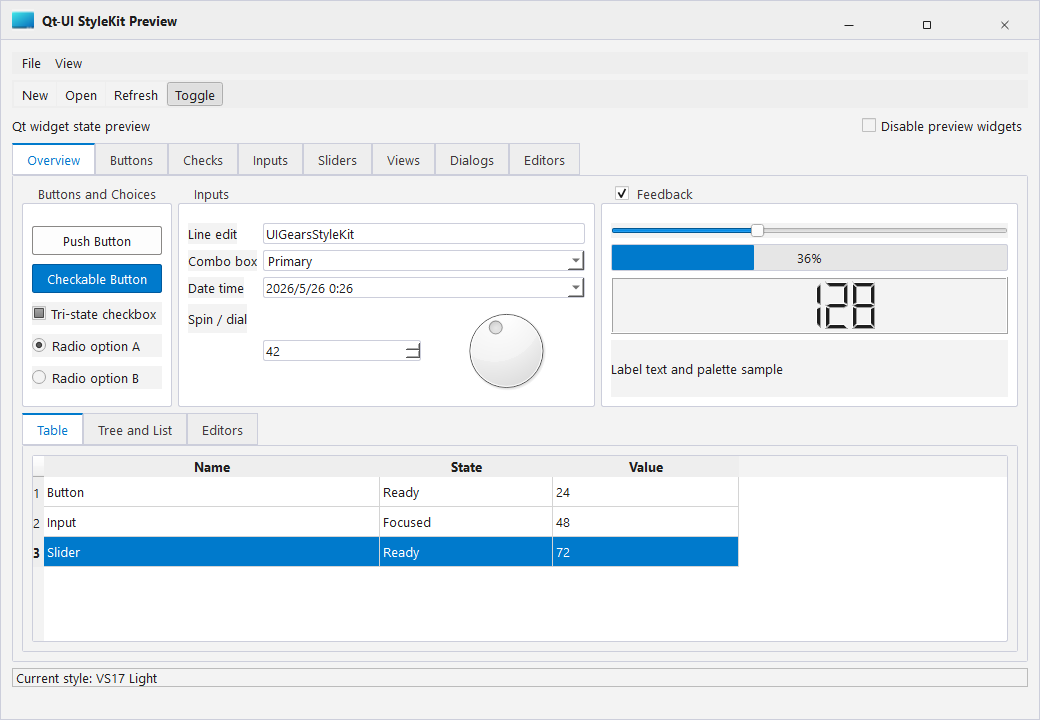
VS17 Light

A bright developer-tool style for engineering desktop software and multi-panel layouts.

Tags: Light, Studio

QSS Structure

QSS Structure

StyleKit themes are split by responsibility so they are easier to maintain.

Typical Structure

  • base.qss: global defaults, fonts, colors, and base widget behavior.
  • controls.qss: buttons, inputs, tables, menus, dialogs, and scroll bars.
  • layout.qss: panels, cards, sidebars, and page containers.
  • icons/: icon resources used by controls and pages.

Naming Guidance

Use stable semantic names instead of page-specific names. For example, primaryButton, warningText, and panelSurface age better than names tied to one screen.

Theme Variables

Theme Variables

StyleKit uses documented color and spacing roles to keep themes consistent.

Common Roles

  • Background: main application surfaces and page backgrounds.
  • Surface: cards, panels, menus, and popups.
  • Text: primary, secondary, disabled, and inverse text.
  • Accent: primary actions and selected states.
  • Danger/Warning/Success: semantic status colors.
  • Line: borders, dividers, and table grid lines.

When adding a theme, keep contrast and disabled states readable. Avoid changing only the main color while leaving hover, pressed, and focus states inconsistent.

Icon Usage

Icon Usage

StyleKit icons are intended to match the control size and state system.

Guidelines

  • Prefer SVG icons for scalable UI.
  • Keep icon sizes aligned with the control height.
  • Use consistent stroke width across toolbars and action buttons.
  • For stateful controls, define normal, hover, pressed, checked, and disabled colors.

When icons are used inside buttons, let the button theme control the visual state whenever possible.

License

License

StyleKit provides community and commercial editions.

Community Edition

Suitable for learning, prototypes, and non-commercial evaluation.

Commercial Editions

Annual and perpetual licenses can be used in commercial projects. Commercial packages include the corresponding source/assets and update rights according to the purchased plan.

Actual licensing scope follows the order and agreement at purchase time.